Alarm And Alert Settings
Alarm System – Alert Settings Overview
The Alert Settings section allows users to monitor deviations in beneficiary behavior by configuring alarms and warnings based on sensor data from various rooms within a deployment. Below is a detailed walkthrough of the interface components and how to manage alert configurations effectively.
Deployment and Filter Selection
At the top of the Alert Settings interface:
- Deployment ID: Select the ID associated with the beneficiary whose data you wish to monitor.
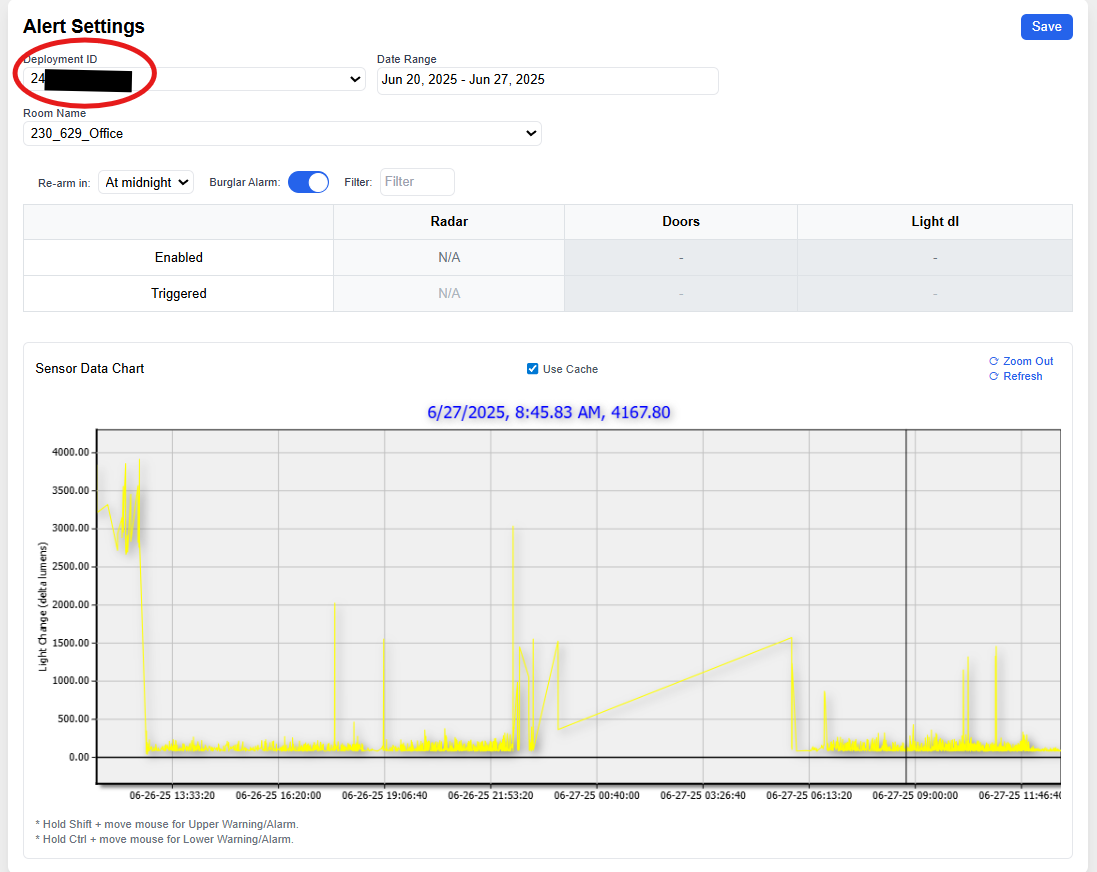
- Date Range: Choose the date range for which you want to review sensor data. The data will be visualized in the form of a line graph.
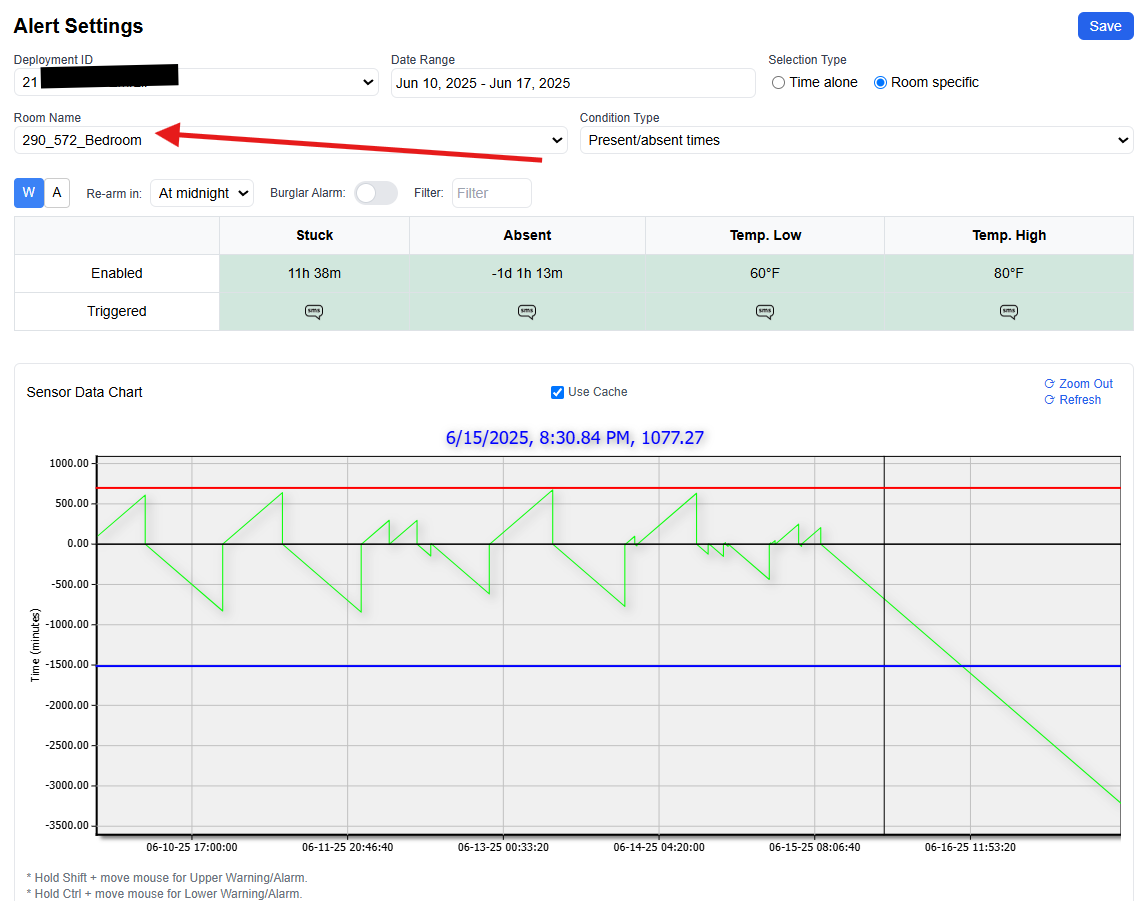
- Room Name: Select a specific room from the dropdown menu to view data related to that location.
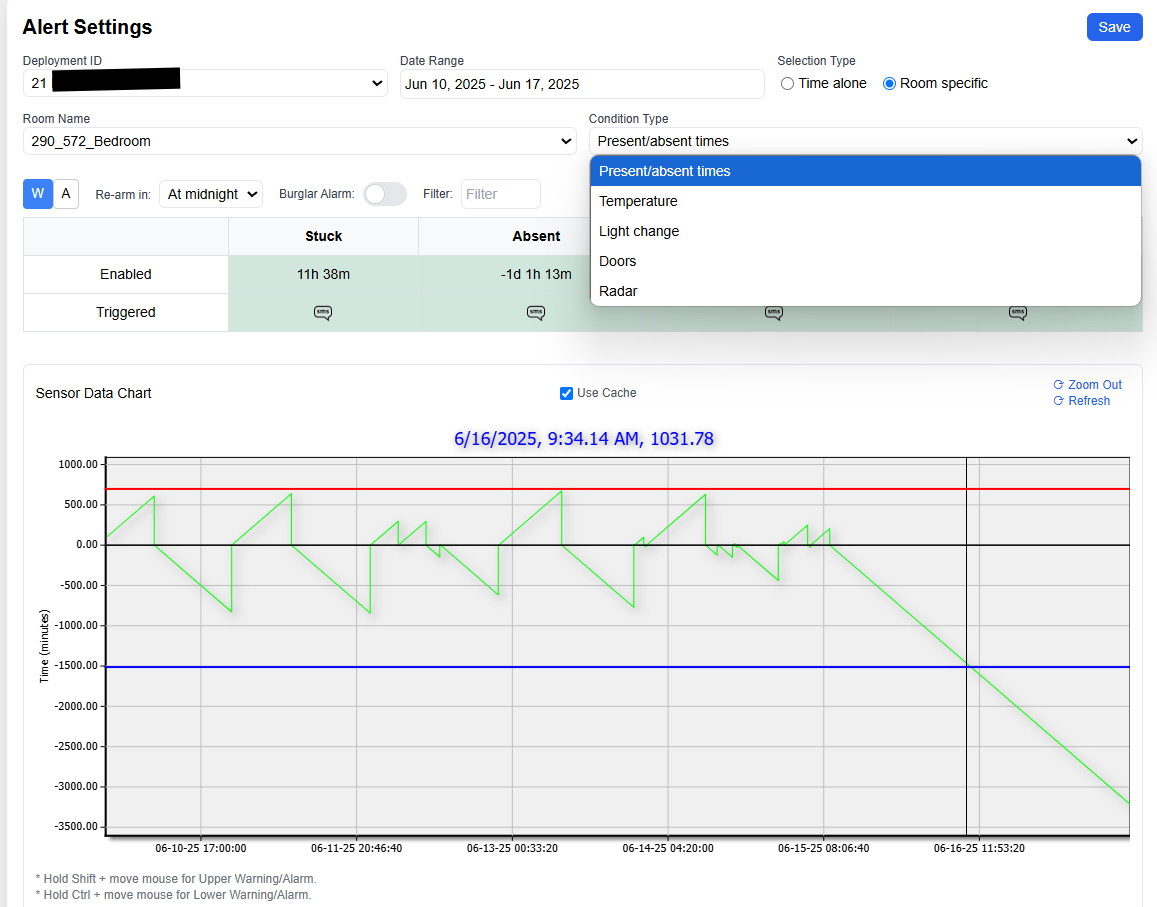
- Condition Type: Choose the sensor condition to monitor. Current options include:
- Presence/Absence
- Temperature
- Light Change
- Doors
- Radar
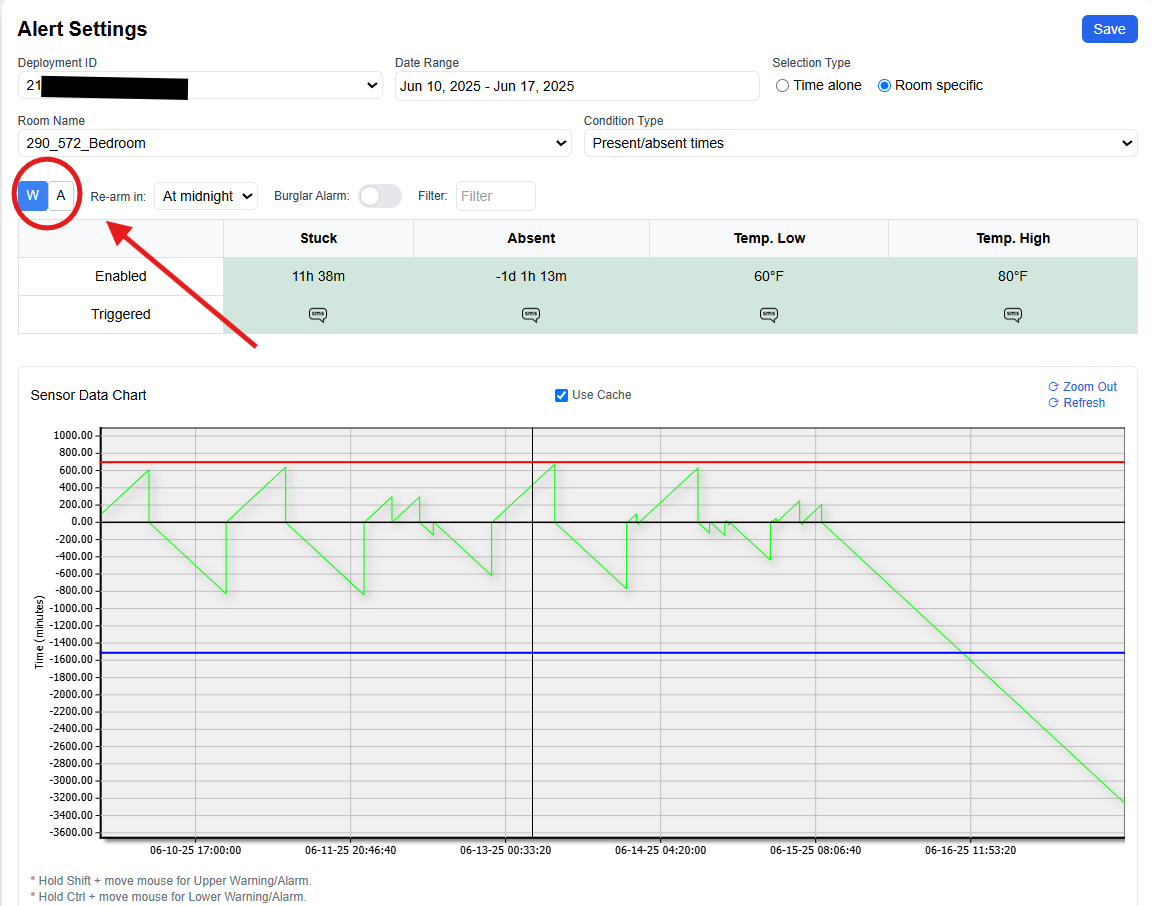
Warning and Alarm Mode Selection
Below the filters, you will find two buttons labeled:
- W (Warning)
- A (Alarm)
Clicking either button will highlight it in blue, indicating the alert type you are configuring.
- Warnings: Notify users of notable deviations from typical behavior.
- Alarms: Indicate significant, potentially urgent anomalies in behavior that may require immediate action.